> ## Documentation Index
> Fetch the complete documentation index at: https://bilanc.mintlify.site/llms.txt
> Use this file to discover all available pages before exploring further.
# MCP Server
> Connect Claude, ChatGPT, Cursor, Gemini, Codex, OpenCode, and Hermes to your Bilanc data over the Model Context Protocol.
Bilanc runs a hosted **MCP (Model Context Protocol) server**, so you can ask your AI assistant questions about your engineering data — and the code behind it — in plain English. No dashboard, no SQL, no API keys to manage.
`https://api.bilanc.co/mcp`
OAuth — you authenticate in the browser with your normal Bilanc login
Once connected you can ask things like:
* "How has our PR cycle time changed over the last three months, by team?"
* "Which squads have the highest AI adoption rate, and did their PR throughput move with it?"
* "Show me the PRs that have been open longest in the payments repo."
* "What's our workflow success rate this quarter versus last?"
* "Which files in the checkout service churn the most, and what's in them?"
***
## What the server exposes
The Bilanc MCP server is **read-only**, and exposes six tools in two groups.
### Analytics — SQL over your marts schema
| Tool | What it does |
| ----------------------- | --------------------------------------------------------------------------------------------------------------------------------------------------------------------------------------------- |
| `describe_marts_schema` | Lists the marts tables and columns available to you, as `column (type) — description`. Takes an optional `tables` array to describe a subset; omit it and you get everything, which is large. |
| `query_marts` | Runs one read-only `SELECT` and returns columns, rows, and a `truncated` flag. `row_limit` defaults to 200 and caps at 1000. |
Your assistant calls `describe_marts_schema` first, then writes SQL against tables like `pull_requests`, `pull_request_reviews`, `pull_request_commits`, `pull_request_files`, `issues`, `release_details`, `workflow_runs`, `ai_copilot`, `team_users`, and `user_metrics`.
`query_marts` is deliberately narrow. Exactly one `SELECT` (or `WITH … SELECT`) per call, no trailing semicolon. Table names are unqualified — the schema search path is preset, and a schema or database prefix is rejected, as are writes, DDL, multiple statements, tables outside the whitelist, and `information_schema`.
### Code — read-only inspection of your repositories
| Tool | What it does |
| ------------------ | --------------------------------------------------------------------------------------------------------------------------------------------------------------------------------- |
| `code_list_repos` | Lists the repositories synced into your tenant's code sandbox, with the `repo_id` and `source` the other tools need. Optional `sources` filter (`github`, `gitlab`, `bitbucket`). |
| `code_list_dir` | Lists files and directories under a path. `depth` defaults to 2 (max 10), `max_entries` to 200 (max 1000). |
| `code_read_file` | Reads a file, optionally between `start_line` and `end_line`. |
| `code_search_text` | Searches a repository by fixed string or regex, with an optional `glob` filter and `max_hits` (default 100, max 500). |
**What the sandbox holds.** Each tool reads the repository's default branch as of the last sync, which runs every two hours, and only repositories active since 2026-01-01 are synced. It is a snapshot for reading, not a checkout — nothing your assistant does here touches your real repositories. The sandbox is scoped to your organization and covers the repositories connected to Bilanc.
**Your permissions come with you.** The server signs you in as *you*. For the analytics tools, row and column access is enforced per user in PostgreSQL, so the assistant can only read data your Bilanc account is already allowed to see. Nothing is writable — no tool can modify your Bilanc data, repos, or tickets.
***
## Claude Code (CLI)
Add the server, then authenticate from inside Claude Code.
```bash theme={null}
claude mcp add --transport http bilanc --scope user https://api.bilanc.co/mcp
```
`--scope user` makes it available in every project on your machine. Use `--scope project` instead to write it into the repo's `.mcp.json` and share it with your team (each person still signs in individually).
Then start Claude Code and run:
```
/mcp
```
Select **bilanc** → **Authenticate**. A browser window opens for you to sign in to Bilanc and approve access. Once it completes, the panel shows the server as connected with its tool count.
Check status any time with:
```bash theme={null}
claude mcp list
```
```
bilanc: https://api.bilanc.co/mcp (HTTP) - ✔ Connected
```
If you'd rather commit the configuration by hand, add this to `.mcp.json` in your repo root:
```json theme={null}
{
"mcpServers": {
"bilanc": {
"type": "http",
"url": "https://api.bilanc.co/mcp"
}
}
}
```
***
## Claude.ai
Bilanc is added as a **custom connector**.
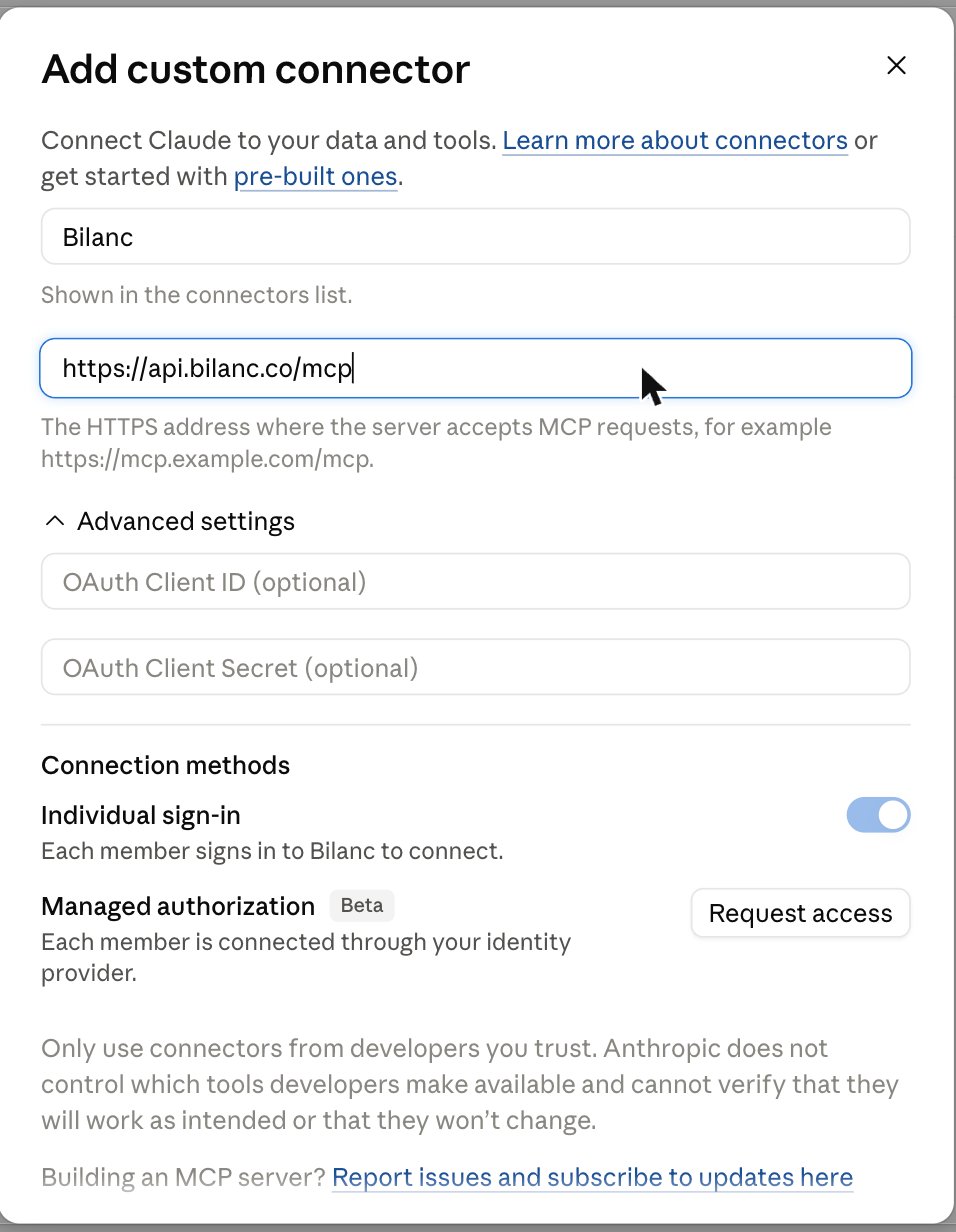
1. Open **Settings**, and under **Customize** click **Connectors**.
2. Click **Add** → **Add custom connector**.
3. Set **Name** to `Bilanc` and **Remote MCP server URL** to `https://api.bilanc.co/mcp`.
4. Under **Advanced settings**, leave **OAuth Client ID** and **OAuth Client Secret** empty — Bilanc registers a client for you automatically.
5. Under **Connection methods**, leave **Individual sign-in** on, so each member signs in to Bilanc with their own account.
6. Click **Add**, then **Connect** and sign in to Bilanc.
 On **Team** and **Enterprise** plans an **Owner** adds the connector once for the whole organization; everyone else then goes to **Settings → Customize → Connectors**, finds **Bilanc** in the list (marked **Custom**), and clicks **Connect** to sign in as themselves.
In a conversation, enable the connector from the **+** button → **Connectors** → **Bilanc**.
***
## ChatGPT
In ChatGPT, MCP servers are added as **plugins** (previously called connectors), and custom ones require **developer mode**.
**1. Turn on developer mode.** Go to **Settings → Security and login → Developer mode** and switch it on. On Business and Enterprise workspaces, a workspace owner may need to allow developer mode first.
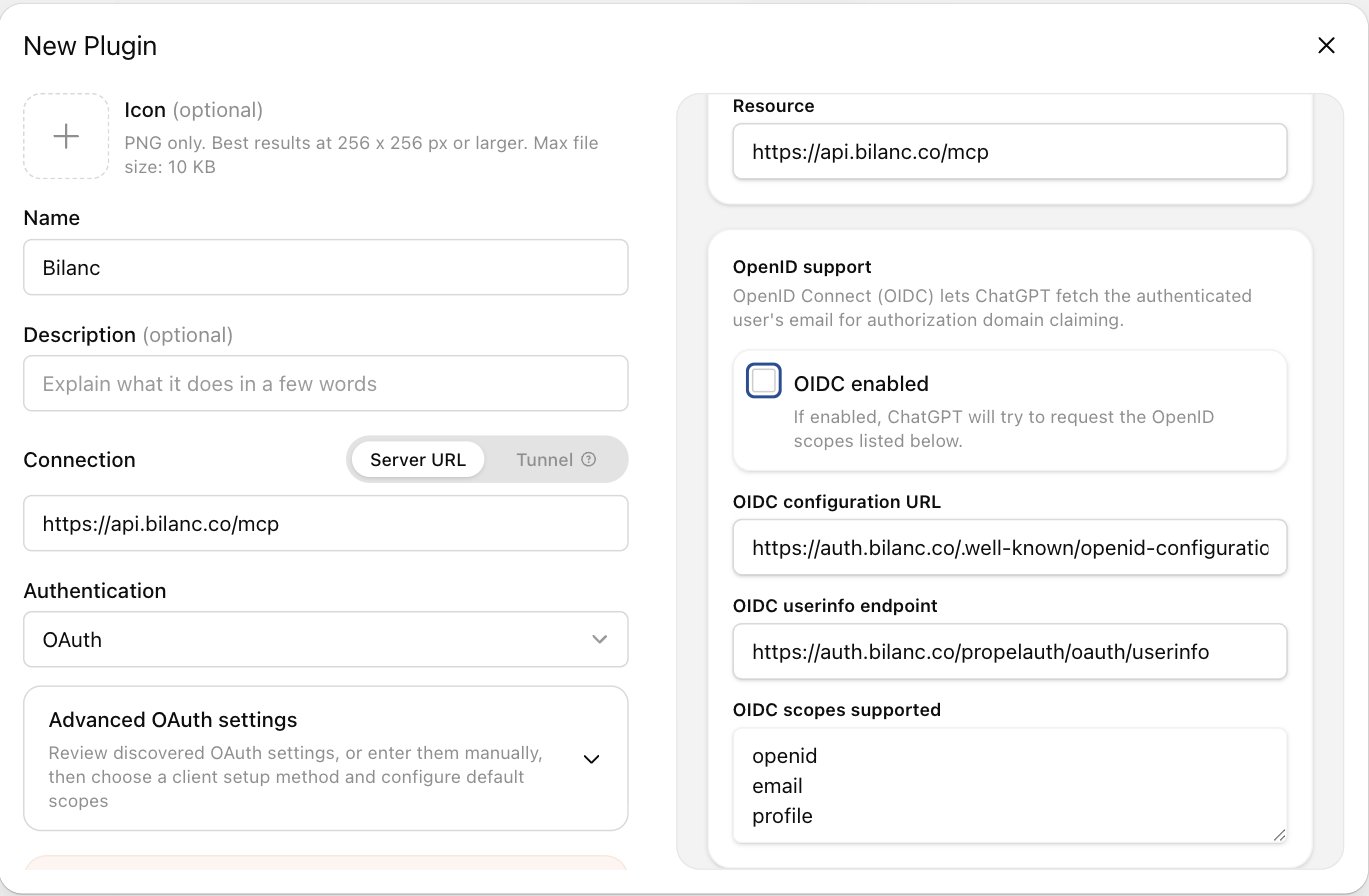
**2. Create the plugin.** Open **Plugins** from the sidebar and click the **+** button, then fill in the **New Plugin** dialog:
* **Name:** `Bilanc`
* **Connection:** leave it on **Server URL** and enter `https://api.bilanc.co/mcp`
* **Authentication:** **OAuth**
**3. Open Advanced OAuth settings** and check the following:
* **Registration method** should be **Dynamic Client Registration (DCR)**. This is selected automatically. (CIMD shows as unavailable — Bilanc doesn't advertise it, which is expected.) The Auth, Token, Registration, and Resource URLs are discovered from the server and shouldn't need editing.
* Under **Default scopes**, `read:marts` should be ticked.
* Under **OpenID support**, **untick "OIDC enabled"**. It is on by default, and it must be off.
**4.** Tick **I understand and want to continue**, click **Create**, then connect and sign in to Bilanc.
**OIDC must be disabled.** The OpenID Connect document at `auth.bilanc.co` describes Bilanc's SSO login app — not the MCP authorization server at `auth.bilanc.co/oauth/2.1`, which issues the `read:marts` scope the MCP endpoint needs. Left enabled, ChatGPT adds `openid`, `email`, and `profile` to the authorization request and the connection fails. With **OIDC enabled** unticked, ChatGPT uses OAuth 2.1 with dynamic client registration and connects normally.
On **Team** and **Enterprise** plans an **Owner** adds the connector once for the whole organization; everyone else then goes to **Settings → Customize → Connectors**, finds **Bilanc** in the list (marked **Custom**), and clicks **Connect** to sign in as themselves.
In a conversation, enable the connector from the **+** button → **Connectors** → **Bilanc**.
***
## ChatGPT
In ChatGPT, MCP servers are added as **plugins** (previously called connectors), and custom ones require **developer mode**.
**1. Turn on developer mode.** Go to **Settings → Security and login → Developer mode** and switch it on. On Business and Enterprise workspaces, a workspace owner may need to allow developer mode first.
**2. Create the plugin.** Open **Plugins** from the sidebar and click the **+** button, then fill in the **New Plugin** dialog:
* **Name:** `Bilanc`
* **Connection:** leave it on **Server URL** and enter `https://api.bilanc.co/mcp`
* **Authentication:** **OAuth**
**3. Open Advanced OAuth settings** and check the following:
* **Registration method** should be **Dynamic Client Registration (DCR)**. This is selected automatically. (CIMD shows as unavailable — Bilanc doesn't advertise it, which is expected.) The Auth, Token, Registration, and Resource URLs are discovered from the server and shouldn't need editing.
* Under **Default scopes**, `read:marts` should be ticked.
* Under **OpenID support**, **untick "OIDC enabled"**. It is on by default, and it must be off.
**4.** Tick **I understand and want to continue**, click **Create**, then connect and sign in to Bilanc.
**OIDC must be disabled.** The OpenID Connect document at `auth.bilanc.co` describes Bilanc's SSO login app — not the MCP authorization server at `auth.bilanc.co/oauth/2.1`, which issues the `read:marts` scope the MCP endpoint needs. Left enabled, ChatGPT adds `openid`, `email`, and `profile` to the authorization request and the connection fails. With **OIDC enabled** unticked, ChatGPT uses OAuth 2.1 with dynamic client registration and connects normally.
 ***
## Codex CLI
```bash theme={null}
codex mcp add bilanc --url https://api.bilanc.co/mcp
codex mcp login bilanc
```
`codex mcp login` opens your browser to sign in to Bilanc. Confirm it worked with `codex mcp list`.
The equivalent entry in `~/.codex/config.toml`:
```toml theme={null}
[mcp_servers.bilanc]
url = "https://api.bilanc.co/mcp"
auth = "oauth"
```
Older Codex versions need remote MCP support switched on explicitly. If `codex mcp add --url` isn't recognised, upgrade Codex, or add this to `~/.codex/config.toml`:
```toml theme={null}
[features]
experimental_use_rmcp_client = true
```
***
## Gemini CLI
Add the server to `~/.gemini/settings.json` (or `.gemini/settings.json` in a project):
```json theme={null}
{
"mcpServers": {
"bilanc": {
"httpUrl": "https://api.bilanc.co/mcp",
"oauth": {
"enabled": true,
"scopes": ["read:marts"]
}
}
}
}
```
Then, in Gemini CLI:
```
/mcp auth bilanc
```
Your browser opens to sign in to Bilanc, and the CLI stores the token and refreshes it for you. Run `/mcp list` to confirm the server and its tools are loaded.
Gemini CLI's OAuth flow needs local browser access and receives the redirect on `http://localhost:7777/oauth/callback`, so run it on a machine where you can open a browser.
***
## Cursor
Cursor reads MCP servers from a JSON file. Use `~/.cursor/mcp.json` to make Bilanc available in every project, or `.cursor/mcp.json` in a repo to share it with your team (each person still signs in individually):
```json theme={null}
{
"mcpServers": {
"bilanc": {
"url": "https://api.bilanc.co/mcp"
}
}
}
```
You can also create the file from the UI: open **Cursor Settings → Tools & Integrations**, and under **MCP Tools** click **New MCP Server** — Cursor opens `mcp.json` for you to paste the block above into.
Save the file and **bilanc** appears in the MCP server list with a **Needs login** state. Click it and your browser opens to sign in to Bilanc and approve access. Once it completes, the entry turns green and lists the six tools.
Then just ask in Agent mode — Cursor picks the tools up automatically. Toggle the server off in the same panel if you don't want it available in a given chat.
Cursor's MCP list has a per-server tool cap, and Bilanc only ships six tools, so they all load. If you have several MCP servers connected and Bilanc's tools don't appear, turn off the ones you're not using for that chat.
***
## OpenCode
```bash theme={null}
opencode mcp add bilanc --url https://api.bilanc.co/mcp
opencode mcp auth bilanc
```
`opencode mcp auth` opens your browser to sign in to Bilanc and approve access. OpenCode sees the `401`, discovers the authorization server, and registers a client dynamically — there's nothing to fill in. The token is stored in `~/.local/share/opencode/mcp-auth.json` and refreshed for you. Confirm with `opencode mcp list`, which shows the server and its auth status.
### Global or project
Passing `--url` always writes to your **global** config, `~/.config/opencode/opencode.json`, making Bilanc available in every project.
To choose, run `opencode mcp add` with no arguments. Inside a git repository its first prompt is **Location**:
* **Current project** — writes to `opencode.json` in the repo root, so the server is shared with your team (each person still signs in individually)
* **Global** — writes to `~/.config/opencode/opencode.json`
Outside a git repository the prompt is skipped and it goes global. The rest of the flow asks for a name (`bilanc`), a type (**Remote**), and the URL (`https://api.bilanc.co/mcp`). Answer **Yes** to *Does this server require OAuth authentication?* — it defaults to No — and **No** to *Do you have a pre-registered client ID?*, since Bilanc registers one for you.
Either way, you can write the entry by hand instead — `opencode.json` in a repo root for the project, or `~/.config/opencode/opencode.json` for every project:
```json theme={null}
{
"$schema": "https://opencode.ai/config.json",
"mcp": {
"bilanc": {
"type": "remote",
"url": "https://api.bilanc.co/mcp",
"enabled": true
}
}
}
```
To sign out again, run `opencode mcp logout bilanc`.
If the connection fails, `opencode mcp debug bilanc` prints the OAuth flow step by step — discovery, registration, and token exchange — which is usually enough to see where it stopped.
***
## Hermes
```bash theme={null}
hermes mcp add bilanc --url https://api.bilanc.co/mcp --auth oauth
hermes mcp login bilanc
```
`hermes mcp login` opens your browser to sign in to Bilanc. The token is cached at `~/.hermes/mcp-tokens/bilanc.json` and reused until it needs refreshing.
`hermes mcp add` writes the server into `~/.hermes/config.yaml`, under `mcp_servers`. The equivalent entry, if you'd rather edit the file directly:
```yaml theme={null}
mcp_servers:
bilanc:
url: "https://api.bilanc.co/mcp"
auth: oauth
```
Leave `client_id` and `client_secret` out — Bilanc supports dynamic client registration, so Hermes registers itself.
Check it with `hermes mcp test bilanc`, and use `hermes mcp configure bilanc` if you want to narrow which of the six tools Hermes loads. If you edit the config during a session, run `/reload-mcp` rather than restarting.
Hermes' OAuth flow needs a local browser for the redirect. On a headless or remote host, use its paste-back flow, forward the callback port over SSH, or set `oauth.redirect_uri` to a proxied callback — see [Connection details](#connection-details) for the API key alternative.
***
## Connection details
For any other MCP client, or if you're debugging a connection:
| | |
| ------------------------ | --------------------------------------------------------------------------------------------------------------------------------------------------------------------------------------- |
| **MCP endpoint** | `https://api.bilanc.co/mcp` (`POST` only — the server is stateless and answers `GET` with `405`, so clients fall back to plain request/response) |
| **Transport** | Streamable HTTP (`streamable-http`) |
| **Protocol versions** | `2025-06-18`, `2025-03-26`, `2024-11-05` |
| **Authentication** | OAuth 2.1, authorization code + PKCE (`S256`) |
| **Authorization server** | `https://auth.bilanc.co/oauth/2.1` (discovered from `https://api.bilanc.co/.well-known/oauth-protected-resource`) |
| **Scope** | `read:marts` |
| **Client registration** | Dynamic client registration (RFC 7591) at `https://auth.bilanc.co/oauth/2.1/register` — no client ID or secret to create |
| **OIDC** | Don't use OIDC discovery. The OpenID Connect document on `auth.bilanc.co` belongs to Bilanc's SSO login app, not to the MCP authorization server |
| **Token** | Sent as `Authorization: Bearer ` |
| **API key alternative** | A personal API key also works, sent as `Authorization: Bearer `. Organization-scoped keys are rejected — the server has to resolve the caller to a user to apply their permissions |
***
## Troubleshooting
Your access token has expired or was never issued. Re-run the client's auth step — `/mcp` in Claude Code, `/mcp auth bilanc` in Gemini CLI, `codex mcp login bilanc` in Codex, `opencode mcp auth bilanc` in OpenCode, `hermes mcp login bilanc` in Hermes, **Needs login** on the server in Cursor's **Tools & Integrations** panel, or **Connect** on the connector in claude.ai and ChatGPT.
Almost always OIDC. Open the plugin's **Advanced OAuth settings** and untick **OIDC enabled** under **OpenID support**, or delete it and create it again with OIDC off. Also confirm **Registration method** is **Dynamic Client Registration (DCR)** and the client ID and secret are blank.
The server enforces your Bilanc permissions. If you can't see something in the dashboard, the assistant can't see it either. Ask a Bilanc admin to widen your access — see [User Management](/user-management).
Only repositories active since 2026-01-01 are synced into the code sandbox, and the sync runs every two hours, so a repository connected in the last couple of hours won't be there yet. The tools also only ever see the default branch — ask about a feature branch and the assistant is reading `main`.
The validator accepts exactly one read-only `SELECT` per call. The usual causes are a trailing semicolon, two statements in one call, a schema-qualified table name (`marts.pull_requests` rather than `pull_requests`), or a table that isn't in the whitelist. Ask the assistant to call `describe_marts_schema` first — it rejects anything that tool doesn't list.
The client flows above are all browser-based OAuth, which needs a machine you can open a browser on. Without one, point your client at the endpoint with a personal API key instead — `Authorization: Bearer `, generated from your [Bilanc dashboard](https://app.bilanc.co) under **Settings → API Keys**. Organization-scoped keys won't work here. In OpenCode that means setting `"oauth": false` alongside an `Authorization` header, otherwise it still tries the browser flow when it sees a `401`. For a pipeline that just needs numbers, the [Metrics API](/api-reference/endpoint/metrics-overview) is usually the simpler option.
Still stuck? Email [sam@bilanc.co](mailto:sam@bilanc.co) or reach out on your shared Slack channel.
***
## Codex CLI
```bash theme={null}
codex mcp add bilanc --url https://api.bilanc.co/mcp
codex mcp login bilanc
```
`codex mcp login` opens your browser to sign in to Bilanc. Confirm it worked with `codex mcp list`.
The equivalent entry in `~/.codex/config.toml`:
```toml theme={null}
[mcp_servers.bilanc]
url = "https://api.bilanc.co/mcp"
auth = "oauth"
```
Older Codex versions need remote MCP support switched on explicitly. If `codex mcp add --url` isn't recognised, upgrade Codex, or add this to `~/.codex/config.toml`:
```toml theme={null}
[features]
experimental_use_rmcp_client = true
```
***
## Gemini CLI
Add the server to `~/.gemini/settings.json` (or `.gemini/settings.json` in a project):
```json theme={null}
{
"mcpServers": {
"bilanc": {
"httpUrl": "https://api.bilanc.co/mcp",
"oauth": {
"enabled": true,
"scopes": ["read:marts"]
}
}
}
}
```
Then, in Gemini CLI:
```
/mcp auth bilanc
```
Your browser opens to sign in to Bilanc, and the CLI stores the token and refreshes it for you. Run `/mcp list` to confirm the server and its tools are loaded.
Gemini CLI's OAuth flow needs local browser access and receives the redirect on `http://localhost:7777/oauth/callback`, so run it on a machine where you can open a browser.
***
## Cursor
Cursor reads MCP servers from a JSON file. Use `~/.cursor/mcp.json` to make Bilanc available in every project, or `.cursor/mcp.json` in a repo to share it with your team (each person still signs in individually):
```json theme={null}
{
"mcpServers": {
"bilanc": {
"url": "https://api.bilanc.co/mcp"
}
}
}
```
You can also create the file from the UI: open **Cursor Settings → Tools & Integrations**, and under **MCP Tools** click **New MCP Server** — Cursor opens `mcp.json` for you to paste the block above into.
Save the file and **bilanc** appears in the MCP server list with a **Needs login** state. Click it and your browser opens to sign in to Bilanc and approve access. Once it completes, the entry turns green and lists the six tools.
Then just ask in Agent mode — Cursor picks the tools up automatically. Toggle the server off in the same panel if you don't want it available in a given chat.
Cursor's MCP list has a per-server tool cap, and Bilanc only ships six tools, so they all load. If you have several MCP servers connected and Bilanc's tools don't appear, turn off the ones you're not using for that chat.
***
## OpenCode
```bash theme={null}
opencode mcp add bilanc --url https://api.bilanc.co/mcp
opencode mcp auth bilanc
```
`opencode mcp auth` opens your browser to sign in to Bilanc and approve access. OpenCode sees the `401`, discovers the authorization server, and registers a client dynamically — there's nothing to fill in. The token is stored in `~/.local/share/opencode/mcp-auth.json` and refreshed for you. Confirm with `opencode mcp list`, which shows the server and its auth status.
### Global or project
Passing `--url` always writes to your **global** config, `~/.config/opencode/opencode.json`, making Bilanc available in every project.
To choose, run `opencode mcp add` with no arguments. Inside a git repository its first prompt is **Location**:
* **Current project** — writes to `opencode.json` in the repo root, so the server is shared with your team (each person still signs in individually)
* **Global** — writes to `~/.config/opencode/opencode.json`
Outside a git repository the prompt is skipped and it goes global. The rest of the flow asks for a name (`bilanc`), a type (**Remote**), and the URL (`https://api.bilanc.co/mcp`). Answer **Yes** to *Does this server require OAuth authentication?* — it defaults to No — and **No** to *Do you have a pre-registered client ID?*, since Bilanc registers one for you.
Either way, you can write the entry by hand instead — `opencode.json` in a repo root for the project, or `~/.config/opencode/opencode.json` for every project:
```json theme={null}
{
"$schema": "https://opencode.ai/config.json",
"mcp": {
"bilanc": {
"type": "remote",
"url": "https://api.bilanc.co/mcp",
"enabled": true
}
}
}
```
To sign out again, run `opencode mcp logout bilanc`.
If the connection fails, `opencode mcp debug bilanc` prints the OAuth flow step by step — discovery, registration, and token exchange — which is usually enough to see where it stopped.
***
## Hermes
```bash theme={null}
hermes mcp add bilanc --url https://api.bilanc.co/mcp --auth oauth
hermes mcp login bilanc
```
`hermes mcp login` opens your browser to sign in to Bilanc. The token is cached at `~/.hermes/mcp-tokens/bilanc.json` and reused until it needs refreshing.
`hermes mcp add` writes the server into `~/.hermes/config.yaml`, under `mcp_servers`. The equivalent entry, if you'd rather edit the file directly:
```yaml theme={null}
mcp_servers:
bilanc:
url: "https://api.bilanc.co/mcp"
auth: oauth
```
Leave `client_id` and `client_secret` out — Bilanc supports dynamic client registration, so Hermes registers itself.
Check it with `hermes mcp test bilanc`, and use `hermes mcp configure bilanc` if you want to narrow which of the six tools Hermes loads. If you edit the config during a session, run `/reload-mcp` rather than restarting.
Hermes' OAuth flow needs a local browser for the redirect. On a headless or remote host, use its paste-back flow, forward the callback port over SSH, or set `oauth.redirect_uri` to a proxied callback — see [Connection details](#connection-details) for the API key alternative.
***
## Connection details
For any other MCP client, or if you're debugging a connection:
| | |
| ------------------------ | --------------------------------------------------------------------------------------------------------------------------------------------------------------------------------------- |
| **MCP endpoint** | `https://api.bilanc.co/mcp` (`POST` only — the server is stateless and answers `GET` with `405`, so clients fall back to plain request/response) |
| **Transport** | Streamable HTTP (`streamable-http`) |
| **Protocol versions** | `2025-06-18`, `2025-03-26`, `2024-11-05` |
| **Authentication** | OAuth 2.1, authorization code + PKCE (`S256`) |
| **Authorization server** | `https://auth.bilanc.co/oauth/2.1` (discovered from `https://api.bilanc.co/.well-known/oauth-protected-resource`) |
| **Scope** | `read:marts` |
| **Client registration** | Dynamic client registration (RFC 7591) at `https://auth.bilanc.co/oauth/2.1/register` — no client ID or secret to create |
| **OIDC** | Don't use OIDC discovery. The OpenID Connect document on `auth.bilanc.co` belongs to Bilanc's SSO login app, not to the MCP authorization server |
| **Token** | Sent as `Authorization: Bearer ` |
| **API key alternative** | A personal API key also works, sent as `Authorization: Bearer `. Organization-scoped keys are rejected — the server has to resolve the caller to a user to apply their permissions |
***
## Troubleshooting
Your access token has expired or was never issued. Re-run the client's auth step — `/mcp` in Claude Code, `/mcp auth bilanc` in Gemini CLI, `codex mcp login bilanc` in Codex, `opencode mcp auth bilanc` in OpenCode, `hermes mcp login bilanc` in Hermes, **Needs login** on the server in Cursor's **Tools & Integrations** panel, or **Connect** on the connector in claude.ai and ChatGPT.
Almost always OIDC. Open the plugin's **Advanced OAuth settings** and untick **OIDC enabled** under **OpenID support**, or delete it and create it again with OIDC off. Also confirm **Registration method** is **Dynamic Client Registration (DCR)** and the client ID and secret are blank.
The server enforces your Bilanc permissions. If you can't see something in the dashboard, the assistant can't see it either. Ask a Bilanc admin to widen your access — see [User Management](/user-management).
Only repositories active since 2026-01-01 are synced into the code sandbox, and the sync runs every two hours, so a repository connected in the last couple of hours won't be there yet. The tools also only ever see the default branch — ask about a feature branch and the assistant is reading `main`.
The validator accepts exactly one read-only `SELECT` per call. The usual causes are a trailing semicolon, two statements in one call, a schema-qualified table name (`marts.pull_requests` rather than `pull_requests`), or a table that isn't in the whitelist. Ask the assistant to call `describe_marts_schema` first — it rejects anything that tool doesn't list.
The client flows above are all browser-based OAuth, which needs a machine you can open a browser on. Without one, point your client at the endpoint with a personal API key instead — `Authorization: Bearer `, generated from your [Bilanc dashboard](https://app.bilanc.co) under **Settings → API Keys**. Organization-scoped keys won't work here. In OpenCode that means setting `"oauth": false` alongside an `Authorization` header, otherwise it still tries the browser flow when it sees a `401`. For a pipeline that just needs numbers, the [Metrics API](/api-reference/endpoint/metrics-overview) is usually the simpler option.
Still stuck? Email [sam@bilanc.co](mailto:sam@bilanc.co) or reach out on your shared Slack channel.